
Best pratice: Securing single function printers with Printix
Best pratice: Securing single function printers with Printix Overview


Features
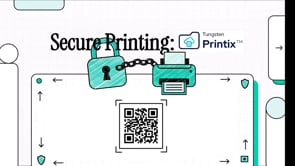
This video demonstrates how to utilize Printix to facilitate protected printing across a network. Users must first configure their hardware settings to ensure that the secure release function is active for all designated devices. The process involves generating and physically attaching unique QR code labels to each printer to identify them within the system. Once these identification tags are in place, the software allows for a verified document release process. This method ensures that sensitive materials are only produced when the user is physically present at the machine to scan the code. Through these steps, the system enhances document confidentiality and streamlines the mobile printing experience.
Benefits
The technology improves document security by implementing a secure printing workflow through its administrative console.
Key ways this technology enhances security include:
- Print Later Functionality: The system allows for print later, which ensures that documents are not automatically printed as soon as the command is sent. This prevents sensitive documents from sitting unattended in a printer's output tray.
- Unique QR Code Identification: Each printer is assigned a unique identifier displayed as a QR code on a physical label.
- Secure Release Mechanism: Users must interact with the printer's specific QR code to release their documents, ensuring that the person who initiated the print job is physically present at the device to collect the materials.
Technical Details
Inputs
To implement QR code-based print release within the Printix system, the following steps must be completed in the administrative console:
- Access the Console: Open the Printix administration console to manage the printer settings.
- Printer Verification: Verify within the settings that the specific printer has already been created in the system.
- Enable Secure Features: Activate the "secure printing" functionality, specifically enabling the "print later" option using QR codes for the selected printer or printers.
- Generate and Apply Labels: Print the physical label that displays the printer's unique identifier as a QR code. This label is then placed on the printer to allow users to release their documents.
- Mobile release : use the Printix Mobile App to scan the QRCode and then release the print job.
iOS: https://apps.apple.com/us/app/tungsten-printix-app/id1391512097
Android : https://play.google.com/store/apps/details?id=net.printix.printixapp
Geographic Availability
Additional Information
For more details contact your local Tungsten Automation representative or your Printix reseller.



